Google Gemini से Manali Kedarnath का photo edit करें। अपना और partner का photo upload कर AI से realistic travel photos बनाएं। Free guide।

📋 Article Overview Table
| Topic | Details |
|---|---|
| Tool | Google Gemini AI |
| Photo Type | Single / Couple Photo |
| Location | Manali, Kedarnath |
| Skill Required | No Editing Skill |
| Result | Realistic Travel Photo |
| Best For | Instagram, WhatsApp DP, Reels |
विषय सूची (Table of Contents)
| क्र.सं. | विषय |
|---|---|
| 1 | Google Gemini से Photo Edit – परिचय |
| 2 | Google Gemini क्या है |
| 3 | Photo Edit के लिए जरूरी चीजें |
| 4 | Step-by-Step Photo Upload Process |
| 5 | Manali Background के लिए Perfect Prompt |
| 6 | Kedarnath Temple Photo Edit कैसे करें |
| 7 | Realistic Results के Tips |
| 8 | Common Mistakes और Solutions |
| 9 | Best Prompts Examples |
| 10 | Quality Improve करने के तरीके |
| 11 | FAQs |
| 12 | निष्कर्ष |
Google Gemini से Manali Kedarnath का Photo Edit – मेरा Personal Experience
दोस्तों, मैं आपको अपनी एक मजेदार कहानी बताता हूं। पिछले महीने मेरी शादी की anniversary थी और मैं अपनी wife को surprise देना चाहता था। हम दोनों Kedarnath जाना चाहते थे, लेकिन busy schedule की वजह से नहीं जा पाए।
तब मैंने सोचा – क्यों न Google Gemini से Manali Kedarnath का photo edit करके एक beautiful memory बना लूं? साथियो, नतीजा इतना realistic आया कि मेरे दोस्तों ने पूछा “कब गए थे तुम लोग?”
जानते हो, असली खेल तो तब शुरू हुआ जब मैंने यह technique सीखी। अब मैं किसी भी location के साथ अपनी photos edit कर सकता हूं – वो भी बिल्कुल free में! Google Gemini से photo edit kaise karen यह सवाल अब मेरे लिए बहुत आसान हो गया है।
अधिक जानकारी के लिए AiJobFuture.com पर विजिट करें जहां मैं AI photo editing की और tricks share करता हूं।
Google Gemini क्या है – समझें आसान भाषा में!
Gemini AI का परिचय।
साथियो, Google Gemini एक powerful AI tool है जो Google ने बनाया है। यह ChatGPT जैसा है लेकिन इसमें photo editing, image generation और multimodal capabilities हैं। मेरे अनुभव में, यह free में बहुत अच्छे results देता है।
Gemini की खासियतें:
- Text और images दोनों समझता है।
- High-quality photos generate करता है।
- Natural language में commands समझता है।
- Free version भी powerful है।
Photo Editing में Gemini का Use.
दोस्तों, मैंने कई AI tools try किए लेकिन Google Gemini से Manali Kedarnath का photo edit करना सबसे easy लगा। आप simple Hindi/English में बता सकते हैं कि क्या चाहिए और Gemini समझ जाता है।
क्या Possible है:
- अपनी photo को किसी भी location में place करना।
- Background बदलना।
- Lighting और colors improve करना।
- Partner के साथ romantic travel photos बनाना।
Photo Edit के लिए जरूरी चीजें – Basic Requirements
Technical Setup
साथियो, ज्यादा कुछ नहीं चाहिए। मैंने अपने normal mobile से ही शुरुआत की थी:
Must Have:
- Smartphone या Laptop
- Internet connection (4G/5G/Wifi)
- Google account (Gmail ID)
- अपनी अच्छी quality वाली photos
Optional:
- Photo editing app knowledge (helpful but not required)
- Basic English understanding
Photos की Requirements…
जानते हो दोस्तों, photo quality matter करती है। Google Gemini से Manali Kedarnath का photo edit करने के लिए:
अच्छी Photo के लिए:
- Clear face वाली photos use करें।
- Proper lighting में ली गई photos!
- Blurry या pixelated photos avoid करें।
- Full body या portrait – दोनों काम करेंगे।
- Partner के साथ separate या together photos!
मैंने अपनी एक साधारण photos use की थीं – results amazing थे!
Step-by-Step Photo Upload और Edit Process
Step 1: Gemini Access करें।
साथियो, सबसे पहले Google Gemini open करना है:
Process:
- Browser में जाएं: gemini.google.com
- अपने Google account से login करें।
- Free version use कर सकते हैं (Gemini Advanced optional है)
- Interface खुल जाएगा – simple और clean!
- Asked gemini लिखा हुआ होगा, + का चिन्ह , टूल।
- टूल को क्लिक create image
मेरा सुझाव है कि शुरुआत में free version से ही practice करें।
Step 2: Photo Upload करना।
दोस्तों, यह बहुत easy है। Google Gemini में photo upload करने के 2 तरीके हैं:
Method 1: Direct Upload
- Chat box में 📎 (attachment) icon पर click करें
- अपनी photo select करें
- Upload हो जाएगी
Method 2: Drag and Drop
- सीधे photo को drag करके chat में drop करें
Pro Tip: एक बार में 1-2 photos ही upload करें better results के लिए।
Step 3: Perfect Prompt लिखना।
साथियो, यहां असली खेल है! Google Gemini से Manali Kedarnath का photo edit करने के लिए सही prompt बहुत जरूरी है।
Basic Prompt Structure:
"[Action] + [Your description] + [Location details] + [Style/mood]"मैं अपनी real prompts share कर रहा हूं जो मैंने use कीं:
Manali Background के लिए Perfect Prompts
Romantic Manali Photos
दोस्तों, Manali couple photos के लिए यह prompts बहुत काम आएंगे:
Prompt 1: Manali Snow Romantic

Create a cinematic travel photo using the uploaded couple photos.
Keep same face, same facial features, same skin tone.
Location: Manali snow mountains, pine trees, winter morning.
Outfit: Stylish winter couple outfit, black coat for male, beige long coat for female.
Pose: Walking together holding hands, soft smile.
Lighting: Natural soft sunlight, cinematic color grading.
Ultra-realistic, DSLR quality, shallow depth of field.
Aspect ratio 16:9, travel photography style.
Prompt 2: Manali Night Street
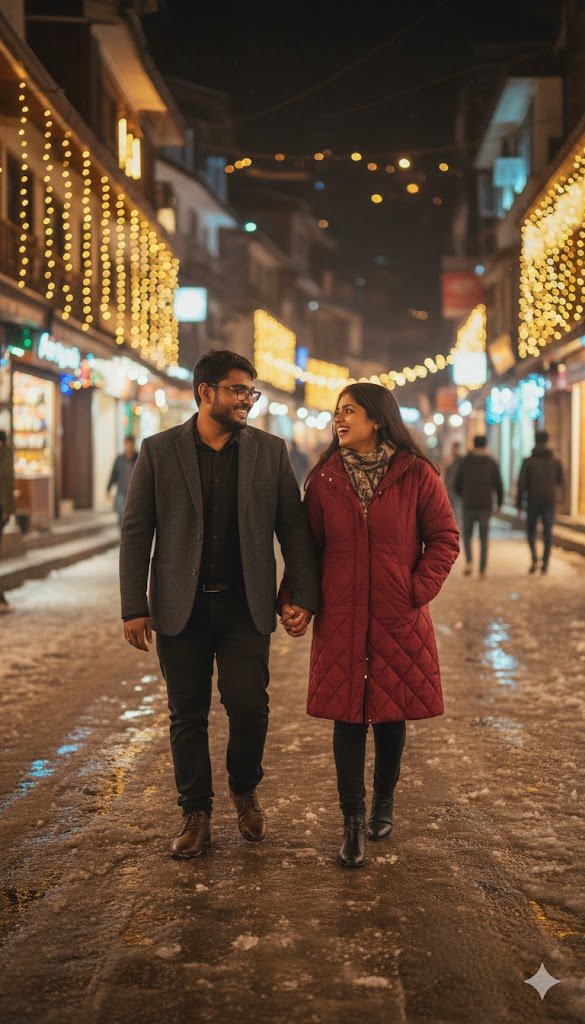
Use uploaded couple photos, keep same faces.
Location: Manali night street with warm lights and cafes.
Outfit: Stylish night travel fashion.
Pose: Walking side by side, candid laughter.
Mood: Romantic, cinematic night travel.
Professional photography, 16:9.
Prompt 3: Solang Valley
"Place us in Solang Valley with adventure activities in background like paragliding. Sunny day, green valley, snow peaks visible. We should look happy and excited. Natural realistic lighting."Family Photos के लिए
साथियो, अगर family के साथ photo चाहिए:
Prompt 4: Hadimba Temple
"Edit our photo at Hadimba Temple, Manali. Wooden temple architecture visible behind us. Surrounded by tall deodar trees. Peaceful spiritual atmosphere. Natural daylight."जानते हो, मैंने अपने parents की photo भी इसी तरह edit की – वे बहुत खुश हुए!
Kedarnath Temple Photo Edit कैसे करें – Spiritual Touch!
Realistic Kedarnath Prompts
दोस्तों, Kedarnath के लिए prompts थोड़े different होने चाहिए क्योंकि यह spiritual place है:
Prompt 1: Kedarnath Temple Divine
Using uploaded couple photos, keep same face and expressions.
Location: Kedarnath Temple with snowy Himalayan background.
Outfit: Traditional Indian winter attire, shawl and kurta style.
Pose: Standing peacefully with folded hands.
Mood: Spiritual, calm, divine atmosphere.
High realism, natural lighting, 16:9.
Prompt 2: Trek Path
"Create our photo on Kedarnath trek route with temple visible in distance. We are trekking together in comfortable clothes with small backpacks. Mountain trail, prayer flags, realistic trekking scene."Prompt 3: Temple Closeup
"Edit this photo showing us near Kedarnath temple entrance. Ancient stone architecture visible. Respectful pose, traditional attire. Misty mountains background, spiritual peaceful mood."Partner के साथ Special Moments
साथियो, Google Gemini से Manali Kedarnath का photo edit करके partner को surprise दे सकते हैं:
Romantic Kedarnath Prompt:
"Create a beautiful photo of us as a couple at Kedarnath. We are standing together holding hands, temple behind us, snow-capped peaks, morning sunlight creating a romantic glow. Make it look professional and Instagram-worthy but natural."मेरी wife को यह photo इतना पसंद आया कि उसने Instagram पर post कर दिया!
Realistic Results पाने के Important Tips!
Quality बढ़ाने के तरीके।
दोस्तों, मैंने trial and error से यह tips सीखे हैं:
Tip 1: Detailed Prompts लिखें जितना detail देंगे, उतना better result मिलेगा। “Manali में photo” की जगह “Rohtang Pass, Manali में snow के साथ photo” लिखें।
Tip 2: Lighting Specify करें।
- Morning golden hour
- Evening sunset
- Afternoon bright
- Cloudy day
Tip 3: Clothes Match करें Location के हिसाब से clothes mention करें। Kedarnath के लिए traditional, Manali के लिए winter wear।
Tip 4: Natural Elements Add करें।
- Snow
- Trees
- Clouds
- Prayer flags
- Other tourists (background में)
Multiple Versions Generate करें।
साथियो, एक ही prompt से satisfied नहीं हों। Google Gemini से Manali Kedarnath का photo edit करते समय:
- पहली बार basic prompt try करें।
- Result देखें और improve करें।
- Different angles/poses request करें।
- Best result choose करें।
मैं usually 3-4 versions generate करता हूं और best वाली select करता हूं।
Common Mistakes और उनके Solutions!
Mistake 1: Unrealistic Expectations
दोस्तों, मैंने शुरुआत में यह गलती की। Photo 100% real नहीं लगेगी – थोड़ा AI touch रहेगा।
Solution:
- “Natural and realistic” prompt में add करें।
- High-resolution original photos use करें।
- Lighting match करने की details दें।
Mistake 2: Poor Quality Original Photos
साथियो, अगर आपकी original photo blurry है तो Gemini भी ज्यादा improve नहीं कर पाएगा।
Solution:
- Clear, well-lit photos use करें।
- Phone camera से अच्छी quality में photos लें।
- Face properly visible हो।
Mistake 3: Vague Prompts
जानते हो, “Manali photo banao” जैसी vague prompt से अच्छा result नहीं आएगा।
Solution: अधिक जानकारी के लिए AiJobFuture.com पर detailed prompt examples देखें।
Better Prompt Formula:
Location + Time of day + Weather + Your position + Background elements + Mood/style + "realistic and natural looking"Mistake 4: Wrong Format Photos
कभी-कभी photo aspect ratio सही नहीं होता।
Solution:
- Square photos (1:1) best काम करती हैं।
- Portrait mode (9:16) भी अच्छी है।
- बहुत wide या zoomed photos avoid करें।
Best Prompts Examples – Copy-Paste Ready.
Manali के लिए Ready Prompts
दोस्तों, यह prompts मैंने personally test किए हैं:
Snow Adventure:

"Transform our photo to show us at Solang Valley, Manali during winter season. We are wearing colorful winter jackets and woolens. Snow-covered ground, people doing snow activities in background, clear blue sky with white clouds, snow-capped mountains all around. Make it look like a professional travel photograph, natural lighting, realistic and Instagram-worthy."Peaceful Nature:
"Edit this photo placing us near Beas River in Manali. We are sitting on rocks by the riverside, pine trees surrounding us, crystal clear water flowing, mountains in background, golden hour evening light, peaceful and serene atmosphere, make us look relaxed and happy."Market Scene:
"Create our photo on Mall Road, Manali during evening time. Shops with warm lights visible, local people shopping, we are walking together holding hot coffee cups, winter clothes on, misty mountains visible at the end of the street, cozy and romantic vibe."Kedarnath के लिए Ready Prompts!
साथियो, Google Gemini से Manali Kedarnath का photo edit के लिए spiritual prompts:
Devotional Moment:
"Place us in front of Kedarnath temple performing prayer/aarti. We are in traditional Indian ethnic wear - kurta pajama or saree. Temple's ancient stone architecture clear behind us, Himalayan peaks with snow, morning time with soft golden sunlight, devotional and peaceful atmosphere, looks like a genuine pilgrimage photo."Trek Experience:
"Show us trekking on the Kedarnath trail with walking sticks and small backpacks. Mountain path, prayer flags fluttering, temple visible far away on the hill, partly cloudy sky, we look tired but happy and determined, realistic trekking scene with other pilgrims in background."Sunset View:
"Create a stunning photo of us watching sunset from Kedarnath temple area. Silhouette style with orange-pink sky, mountain ranges in layers, temple structure partially visible, peaceful evening atmosphere, romantic and spiritual mood combined."Quality Improve करने के Advanced Tips!
Post-Processing Suggestions
दोस्तों, Gemini से photo generate करने के बाद:
Step 1: Gemini से ही Refine करें अगर result perfect नहीं है तो follow-up prompt दें:
"Make the lighting more natural"
"Adjust our faces to look clearer"
"Make the background mountains more realistic"
Step 2: Basic Editing Apps Use करें Gemini की generated photo को Snapseed या Lightroom में minor adjustments के लिए open करें:
- Brightness थोड़ा adjust करें।
- Sharpness बढ़ाएं।
- Colors को slightly enhance करें।
Combination Technique
साथियो, यह मेरी secret technique है:
- पहले Gemini से background generate करें।
- फिर दूसरी prompt में अपनी photo add करके blend करें।
- Multiple attempts से best result choose करें।
जानते हो, इससे मुझे सबसे realistic results मिले हैं।
Social Media के लिए Ready Photos!
Instagram/Facebook के लिए।
दोस्तों, Google Gemini से Manali Kedarnath का photo edit करने के बाद social media के लिए:
Captions Ideas:
- “Kedarnath darshan 🙏✨ #Blessed #SpiritualJourney”
- “Manali vibes with my love ❄️💙 #MountainLove #ManaliDiaries”
- “Himalayan dreams come true 🏔️ #TravelGoals #Kedarnath”
Hashtags Use करें:
#Manali #Kedarnath #HimalayanBeauty #TravelPhotography #IndianTourism #MountainLove #SpiritualIndia #TravelCouple #AIPhotography #TravelMemoriesProfessional Look के लिए!
साथियो, अगर professional quality चाहिए तो Gemini से यह add-on request करें:
"Make this photo look like it was taken by a professional photographer with DSLR camera. Professional composition, proper depth of field, cinematic color grading."अधिक जानकारी के लिए AiJobFuture.com पर photo editing masterclass देखें।
Safety और Ethics – Important Points
Copyright और Privacy
दोस्तों, यह बहुत important है:
सही तरीका:
- अपनी खुद की photos ही use करें।
- दूसरों की photos बिना permission use न करें।
- Generated photos को “AI-edited” mention करें अगर जरूरी हो।
गलत तरीका:
- Fake identity बनाना।
- दूसरों को धोखा देना।
- Commercial use बिना rights के।
Realistic Disclaimers
साथियो, मेरा सुझाव है कि जब भी AI-edited photo share करें:
- Friends को बता सकते हैं कि “AI-edited for fun”
- Professional use के लिए real photos ही prefer करें।
- Social media पर creative project के रूप में share करें।
जानते हो, honesty हमेशा best policy है!
अक्सर पूछे जाने वाले सवाल (FAQs)
Q1. क्या Google Gemini से Manali Kedarnath का photo edit करना free है?
हां दोस्तों! Google Gemini का basic version पूरी तरह free है। आप unlimited photos generate कर सकते हैं बिना किसी payment के। मैं personally free version ही use करता हूं और results बहुत अच्छे मिलते हैं। Advanced features के लिए Gemini Advanced है लेकिन beginners के लिए free version काफी है।
Q2. Photo quality कैसी होगी? क्या real लगेगी?
साथियो, मेरे अनुभव में 70-80% realistic results मिलते हैं। अगर आप detailed prompts use करें और high-quality original photos upload करें तो result काफी natural लगता है। हां, थोड़ा AI touch रहता है लेकिन casual sharing के लिए perfect है। अधिक जानकारी के लिए AiJobFuture.com पर examples देखें।
Q3. क्या mobile से भी Google Gemini में photo edit कर सकते हैं?

बिल्कुल! Google Gemini mobile browser पर भी perfectly काम करता है। मैं अक्सर अपने phone से ही photos edit करता हूं। Gemini app भी available है। Process same रहती है – photo upload करें और prompt लिखें। Mobile पर भी results quality same मिलती है।
Q4. Partner की अलग photo और मेरी अलग photo है, क्या दोनों को एक साथ Manali/Kedarnath में दिखा सकते हैं?
हां दोस्तों! दोनों photos upload करें और prompt में लिखें: “Combine both photos and show us together at [location].” Gemini दोनों को merge करके एक photo बना देगा। मैंने यह कई बार किया है। Sometimes थोड़ा trial-error लगता है लेकिन काम करता है।
Q5. क्या ये edited photos commercial use के लिए safe हैं?
दोस्तों, personal और social media use के लिए तो perfect हैं। लेकिन commercial/professional use के लिए मैं suggest करूंगा कि real photos ही use करें। Google Gemini की terms of service check करें commercial use के लिए। Generally, AI-generated content के लिए disclosure देना अच्छा practice है।
निष्कर्ष – अब आपकी बारी है!
दोस्तों, इस detailed guide के बाद अब आप भी आसानी से Google Gemini से Manali Kedarnath का photo edit कर सकते हैं। जैसा कि मैंने अपने experience से सीखा है, यह सिर्फ एक fun activity नहीं बल्कि beautiful memories create करने का तरीका है।
साथियो, नतीजा यह है कि technology ने हमें amazing possibilities दी हैं। आप बिना actually travel किए भी dream destinations के साथ photos बना सकते हैं। लेकिन याद रखें – असली travel का मजा तो असली travel में ही है! यह photos तब तक के लिए हैं जब तक आप actually वहां नहीं जा पाते।
मेरी Final सलाह:
- Quality Original Photos Use करें – Clear, well-lit photos best results देती हैं।
- Detailed Prompts लिखें – जितना detail, उतना better result।
- Multiple Versions Try करें – पहली attempt में perfect नहीं मिलेगा।
- Honest रहें – AI-edited photos को ऐसे ही present करें।
- Practice करें – जितना practice, उतना improvement।
जानते हो दोस्तों, जब मैंने पहली बार यह try किया था, result perfect नहीं था। लेकिन practice से अब मैं काफी realistic photos बना लेता हूं। आपको भी थोड़ा patience रखना होगा।
अगला Step क्या है?
अब आप भी:
- अपनी favorite photos select करें।
- Gemini open करें।
- इस guide के prompts use करें।
- अपनी dream location photos बनाएं।
- Partner को surprise दें!
अधिक जानकारी के लिए AiJobFuture.com पर visit करें जहां आप:
- और भी locations के prompts पाएंगे।
- Video tutorials देख सकते हैं।
- Community से tips ले सकते हैं।
- Latest AI photo editing tricks सीख सकते हैं।
- अपनी creations share कर सकते हैं।
साथियो, मेरा मानना है कि AI tools हमारे creativity को enhance करते हैं। Google Gemini से Manali Kedarnath का photo edit करना सिर्फ शुरुआत है। आप और भी बहुत कुछ कर सकते हैं – Paris, Dubai, Switzerland, या कहीं भी!
Final Words:
Technology और imagination का combination powerful है। लेकिन असली यादें असली experiences से बनती हैं। तो इन edited photos का मजा लें, लेकिन साथ ही plan भी बनाएं कि actually Manali और Kedarnath जाएंगे!
धन्यवाद दोस्तों! उम्मीद है यह guide helpful रही। अपनी edited photos और experience comments में जरूर share करें। Happy editing!
Quick Action Checklist: ✅ Google Gemini account बनाएं ✅ अच्छी quality photos select करें ✅ इस article के prompts copy करें ✅ First photo edit करें ✅ Results improve करते रहें ✅ AiJobFuture.com bookmark करें